Set Up and Run a Simulation
A good thing when working with the eELib would be the familiarization with the two test scenarios of the eELib: one for a single building and one for a small 8-bus low-voltage grid. With the following explanations of the setup of simulations, try to understand the given examples. Afterwards, you should know what is needed for a simulation and how you could set it up.
What files are needed for a simulation?
To run a simulation, we need four files: A scenario script and the scenario data, which is divided into a model data file, the model connections and a grid file. Additionally, corresponding input data such as files for the input of pv generation or a household baseload, must be provided.
Scenario script
Start the simulators, build the models, create the connections and start mosaik.
Exemplary scripts for building, grid etc. can be found in the examples folder.
The setup of these scripts is explained below in the Scenario Script Configuration section.
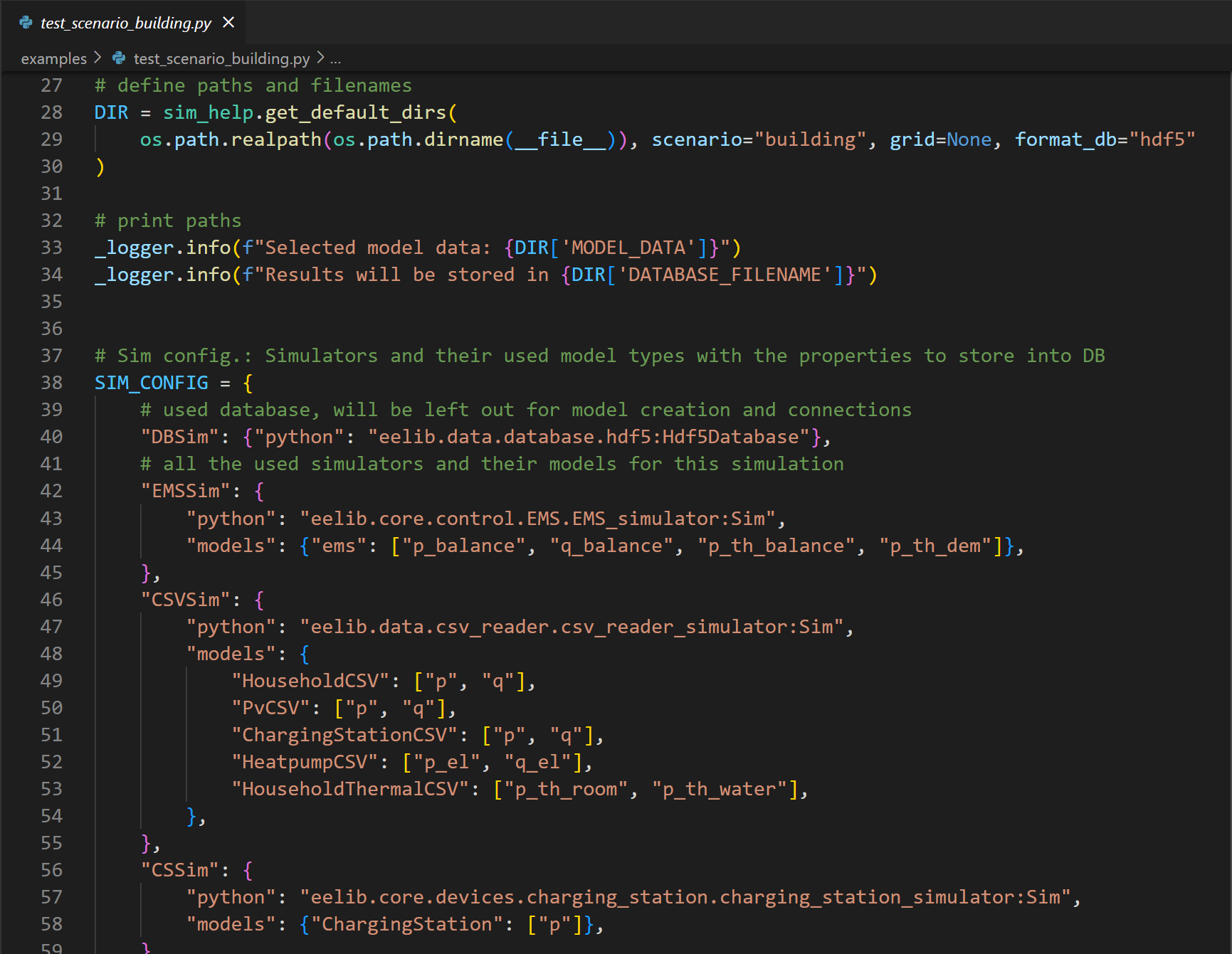
examples/test_scenario_building.py (01/24)
Model data file
Information on the number of models and their parameterization.
This is stored as a dict with fields for each model type, named by the class of the model. E.g. the field “HouseholdCSV” contains a list of all household baseloads that read from a csv file. In the example below there is just one baseload, and if more of these should be integrated, we could add a second dict with initialization parameters for this model inside of the given list.
One exception is the Energy Management System (EMS), as they are all sorted within the “ems” section. Their differentiation comes from the field “strategy”, which is referring to the chosen operating strategy of the EMS.
 1{
 2   "ems": [
 3      {
 4            "strategy": "HEMS_default",
 5            "cs_strategy": "balanced"
 6      }
 7   ],
 8   "HouseholdCSV": [
 9      {
10            "p_rated": 4500,
11            "p_rated_profile": 4000,
12            "cos_phi": 1.0,
13            "datafile": "examples/data/load/4_persons_profile/load_34.csv",
14            "date_format": "YYYY-MM-DD HH:mm:ss",
15            "header_rows": 2,
16            "start_time": "2014-01-01 00:00:00"
17      }
18   ],
19...
Model connections
The model connections provide information on linking the model entities in the simulation. This includes the connections between grid buses, ems models, and the prosumer devices. It states which devices are located at which grid connection point (by naming the corresponding load bus) and whether an EMS is used. If no EMS is given at a loadbus (see “0-load_1_2” below), the devices are directly connection to the grid, but this should only be possible for some of the devices, as e.g. a single heat pump makes no sense.
 1{
 2   "0-load_1_1": {
 3      "ems": "HEMS_default_0",
 4      "load": [
 5            "HouseholdCSV_0"
 6      ],
 7      "household_thermal": [],
 8      "pv": [],
 9      "bss": [],
10      "hp": [],
11      "cs": [
12            "ChargingStation_0"
13      ],
14      "ev": [
15            "EV_0"
16      ]
17   },
18   "0-load_1_2": {
19      "ems": "",
20      "load": [
21            "HouseholdCSV_1"
22      ],
23...
Grid file
In .json format (possibly created via pandapower). Provides details on the given buses and their
connections via grid lines (plus their parameterization).
 1{
 2  "_module": "pandapower.auxiliary",
 3  "_class": "pandapowerNet",
 4  "_object": {
 5    "bus": {
 6      "_module": "pandas.core.frame",
 7      "_class": "DataFrame",
 8      "_object": "{\"columns\":[\"name\",\"vn_kv\",\"type\",\"zone\",\"in_service\"],\"index\":[0,1,2,3,4,5,6,7,8,9,10,11,12,13,14,15,16,17],\"data\":[[\"Trafostation_OS\",10.0,\"b\",null,true],[\"main_busbar\",0.4,\"b\",null,true],[\"MUF_1_1\",0.4,\"n\",null,true],[\"loadbus_1_1\",0.4,\"b\",null,true],[\"KV_1_2\",0.4,\"b\",null,true],[\"loadbus_1_2\",0.4,\"b\",null,true],[\"MUF_1_3\",0.4,\"n\",null,true],[\"loadbus_1_3\",0.4,\"b\",null,true],[\"KV_1_4\",0.4,\"b\",null,true],[\"loadbus_1_4\",0.4,\"b\",null,true],[\"MUF_1_5\",0.4,\"n\",null,true],[\"loadbus_1_5\",0.4,\"b\",null,true],[\"KV_1_6\",0.4,\"b\",null,true],[\"loadbus_1_6\",0.4,\"b\",null,true],[\"MUF_2_1\",0.4,\"n\",null,true],[\"loadbus_2_1\",0.4,\"b\",null,true],[\"KV_2_2\",0.4,\"b\",null,true],[\"loadbus_2_2\",0.4,\"b\",null,true]]}",
 9      "orient": "split",
10      "dtype": {
11        "name": "object",
12        "vn_kv": "float64",
13        "type": "object",
14        "zone": "object",
15        "in_service": "bool"
16      }
17    },
18...
Tip
All files can be created (more easily) with a Scenario Configurator
(.ipynb). You can also use existing files and adapt the configuration and parameterization.
Configuration of a Scenario Script
Note
All of these code-blocks derive from examples/test_scenario_building.py as of (01/24)
if not stated otherwise.
Setup
import of used packages (examples, like mosaik or logging during the simulation) 8import os
9import mosaik
10import eelib.utils.simulation_helper as sim_help
11from eelib.model_connections.connections import get_default_connections
12import logging
27# define paths and filenames
28DIR = sim_help.get_default_dirs(
29    os.path.realpath(os.path.dirname(__file__)), scenario="building", grid=None, format_db="hdf5"
30)
37# Sim config.: Simulators and their used model types with the properties to store into DB
38SIM_CONFIG = {
39   # used database, will be left out for model creation and connections
40   "DBSim": {"python": "eelib.data.database.hdf5:Hdf5Database"},
41   # all the used simulators and their models for this simulation
42   "EMSSim": {
43      "python": "eelib.core.control.EMS.EMS_simulator:Sim",
44      "models": {"ems": ["p_balance", "q_balance", "p_th_balance", "p_th_dem"]},
45   },
46   "CSVSim": {
47      "python": "eelib.data.csv_reader.csv_reader_simulator:Sim",
48      "models": {
49            "HouseholdCSV": ["p", "q"],
50            "PvCSV": ["p", "q"],
51            "ChargingStationCSV": ["p", "q"],
52            "HeatpumpCSV": ["p_el", "q_el"],
53            "HouseholdThermalCSV": ["p_th_room", "p_th_water"],
54      },
55   },
56   ...
This is done in a format that fits both mosaik for orchestrating the simulation and the handling of data and the simulation setup. So in the “SIM_CONFIG” dict we first need to give all used simulators as the keys (e.g., “CSVSim” for all used csv readers). With the sub-key “python” , we then provide the path to this simulator in our library (e.g., “eelib.data.csv_reader.csv_reader_simulator:Sim”). Under “models” we list all of the used model types within the simulation for this simulator (e.g., “HouseholdCSV”, “PvCSV”) and the attributes of them that should be stored within the database (e.g., [“p”, “q”] for active and reactive power of the PV system).
SIM_CONFIG is handed to mosaik. 82# Configuration of scenario: time and granularity
83START = "2020-01-01 00:00:00"
84END = "2020-01-04 00:00:00"
85USE_FORECAST = False
86STEP_SIZE_IN_SECONDS = 900 # 1=sec-steps, 3600=hour-steps, 900=15min-steps, 600=10min-steps
87N_SECONDS = int(
88 (
89 arrow.get(END, "YYYY-MM-DD HH:mm:ss") - arrow.get(START, "YYYY-MM-DD HH:mm:ss")
90 ).total_seconds()
91)
92N_STEPS = int(N_SECONDS / STEP_SIZE_IN_SECONDS)
93scenario_config = {
94 "start": START, # time of beginning for simulation
95 "end": END, # time of ending
96 "step_size": STEP_SIZE_IN_SECONDS,
97 "n_steps": N_STEPS,
98 "use_forcast": USE_FORECAST,
99 "bool_plot": False,
100}
101
102# Read Scenario file with data for model entities
103with open(DIR["MODEL_DATA"]) as f:
104 model_data = json.load(f)
105
106# Read configuration file with data for connections between prosumer devices
107model_connect_config = get_default_connections()
108
109# Create world
110world = mosaik.World(SIM_CONFIG, debug=True)
With mosaik.World, we start the orchestrator mosaik and afterward set up the simulation using mosaik. For this, we mostly use mosaik functionalities within the helper functions of the eelib.utils.simulation_helper folder. Regarding the order, we mostly first handle the exceptions of the models, like the output database, and afterward use the helper functions for all other models. Fore a deeper understanding of what is done with these steps, you should look at the implementation of these helper functions and possibly even the setup of mosaik for creating the simulation.
Start Simulators for all used Models
120# start all simulators/model factories with mosaik for data given in SIM_CONFIG
121dict_simulators = sim_help.start_simulators(
122    sim_config=SIM_CONFIG, world=world, scenario_config=scenario_config
123)
Initiate Model Entities using the created Simulators for each Device Type
133# create all models based on given SIM_CONFIG
134dict_entities = sim_help.create_entities(
135    sim_config=SIM_CONFIG, model_data=model_data, dict_simulators=dict_simulators
136)
Connect Entities
The connections for each entity are listed in the model_connect_config data. Now tell mosaik
about them and let mosaik create graphs for how the calculation procedure of the simulation is to be
executed.
Additionally, the entities are connected to the database to store the desired resulting property
values.
143# connect all models to each other
144sim_help.connect_entities(
145    world=world,
146    dict_entities=dict_entities,
147    model_connect_config=model_connect_config,
148    dict_simulators=dict_simulators,
149)
Run Simulation
161world.run(until=scenario_config["n_steps"], print_progress=True)
Just go Ahead and Run a Simulation
- You can run one of the
test_scenariosin theexamplesfolder building: Just one single building with a bunch of different devices to see the operation of devices inside the household.grid: Simple low voltage grid (2 feeders with six resp. two household connection points) to estimate of the impact of different operating strategies on the local grid.
- You can run one of the
While running the simulation, some stuff is logged like creation of simulators, entities, and connections. Additionally, mosaik plots the progress of the whole simulation (like how many time steps are finished calculating).
Adapting the parameterization in the simulation files can yield quite different results.
Running one of the simulations will create a
.hdf5results data file in the folder/examples/results.You can view the information of this file via the H5Web Extension in Microsoft VSC and plot the profiles (stored under
Series) of the used devices.If you want, you can set the parameter bool_plot in the scenario_config dict to true ( only do this for small simulations!). mosaik will then present four plots for the connections, the simulation process and the timely duration during the simulation.
Create your own simulation
Copy one of the test scenarios and delete all of the redundant simulators/devices/connections.
Set up corresponding model (and grid) data and a model connection file.
ALTERNATIVE: Use the Scenario Configurator